Complete Troubleshooting Guide for 4G Wireless Video Intercom
For security installers and system integrators, field faults on 4G cellular intercom devices can delay project acceptance. Most common issues are related to SIM-card installation, cellular signal, wiring connection or keypad configuration. This guide compiles practical troubleshooting steps based on the official product manual for a 4G wireless doorbell model, helping technicians quickly diagnose and resolve typical on-site failures.
Note: this article applies to a Tuya-based 4G video intercom with keypad & RFID access control. Always refer to the official wiring diagram during hardware inspection.
1. Unit cannot make outgoing calls to a mobile phone; signal indicator flashes rapidly at 600ms interval
Possible causes
SIM card is invalid, expired, inserted incorrectly, or lacks voice/SMS service.
4G communication module is abnormal.
Diagnosis & fixes
1.Power off the unit, take out the SIM card, verify SIM validity and check the insertion direction. Confirm the SIM supports both voice call and data service.
2.Use a mobile phone to call the SIM-card number inside the intercom unit. If you hear a continuous ring-back tone without connection, it points to a module communication anomaly.
3.If calling returns a "power-off / unavailable" prompt, focus on SIM-card validity.
2. Cannot call a mobile phone; signal indicator off, but keypad gives key-press beep sound
Possible causes
Device fails to find the cellular network.
Antenna is loose, disconnected or shielded by a metal enclosure.
Communication module fault.
Diagnosis & fixes
1.Double-check the 4G antenna connection. Ensure the antenna cable connector is firmly screwed in; keep the antenna away from large metal objects that block cellular signal.
2.Make a field test: call the intercom SIM-card number from a mobile phone. A continuous ring-back tone indicates module abnormality. A "power-off" prompt points to an antenna-related problem.
3. No response from the whole unit: signal lamp off, no beep when pressing keys
Possible causes
Device fails to boot due to a power-supply fault or main-board damage.
Diagnosis & fixes
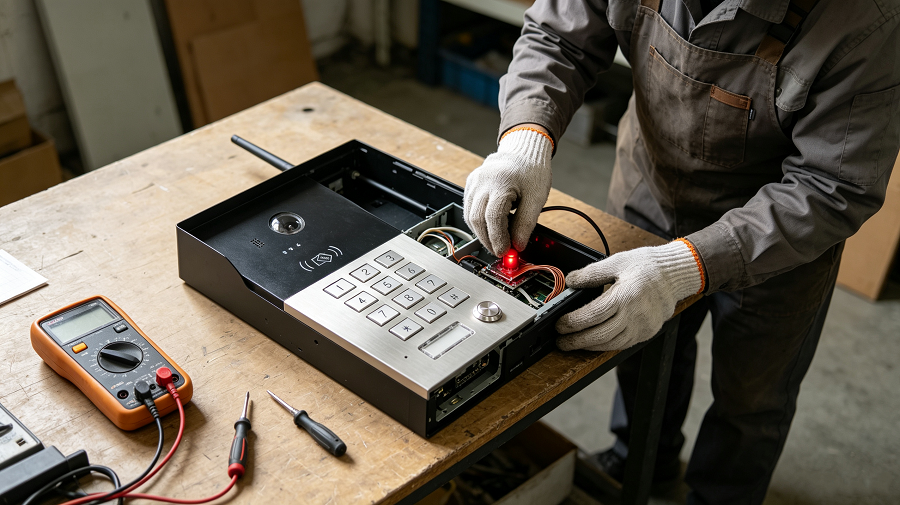
1.Open the rear housing and observe the power indicator LED (red light when power input is present).
2.If the red power indicator does not light up: replace the DC 12-15V power supply and verify the voltage output matches the specification.
3.If the red power indicator lights up but the device remains unresponsive: main-board hardware failure, return for repair or replacement.
4. Keypad no beep feedback, but the calling intercom function still works
Possible cause: the keypad flat cable is loose or damaged. Fix: open the back cover and inspect the keypad connecting ribbon cable; re-seat the connector or replace the damaged cable.
5. Visitor calls work normally, but the door cannot unlock
Possible cause: incorrect lock wiring or relay connection error. Fix: check the wiring diagram, inspect the NO/COM/NC relay terminal connections for the electric lock or magnetic lock, and confirm the lock power supply and relay wiring are securely fastened.
6. SMS configuration command returns error replies
Three standard SMS error feedback messages from the device:
1.Wrong password! — the administrator password filled in the SMS command is incorrect.
2.Invalid message! — the SMS command format is wrong, with extra spaces or wrong symbols.
3.Do not have permission! — the number sending the SMS does not hold administrator privilege.
Tips for SMS remote setting: follow the exact syntax from the user manual and do not add extra spaces. Remember that modifying the 4G microphone/speaker volume will trigger an automatic device reboot.
Quick Tips to Avoid Common Installation Mistakes
1.After inserting the SIM card, power-cycle the device and wait approximately 35 seconds for network auto-registration. Under weak-signal environments, network-search time extends.
2.If you forget the administrator password: press and hold the hardware SW3 reset button on the rear side for more than 20 seconds for a forced factory reset. Attention: this erases all stored passwords, registered phone numbers and RFID card data.
3.After factory reset, the very first RFID card swiped within 60 seconds of power-on becomes the administrator card for card-management operations.
FAQ
Q: How do I know whether the device is in normal mode or access-only mode?
A: Check the button-indicator light: rapid flash = searching network; slow 1-second flash = network registration success; no-SIM/invalid SIM triggers a slow flash every 3 seconds. When access-only mode is active, the keypad backlight turns off.
Q: What should I do if the Tuya app cannot pair the device?
A: Confirm the unit finishes cellular network registration and plays the voice prompt "4G Mode". Scan the QR code on the device for Tuya pairing after the voice prompt.
Q: Can I restore partial settings without wiping all user data?
A: Yes. The keypad command "254" triggers a partial reset, which restores the admin password, unlock delay and audio volume without clearing user passwords and authorized phone numbers. Command "253" executes a complete reset and wipes all user-saved data.
For installers and project partners, you can download the full wiring diagram and user manual from our resource center. If you run into complex field issues, our technical-support team offers project-level assistance for bulk-order clients.
Copyright.(C) 2008-2026 ZHUHAI DAEGEN ELECTRONICS CO., LTD All Rights Reserved
Zhuhai Daegen Electronics Co., Ltd
ADD: F. 3, Building 7, Huada Industrial Zone, No. 856, Renmin West Road, Xiangzhou District, Zhuhai, China
Mobile/Whatsapp: : +86 139 2805 5697
WeChat:+86 139 2805 5697
E-mail:jason@zhdaegen.com